A website from Git: build at every push, publish to your NAS's web server
Original: nasutils.net/howto-bucketvs-website.html. Version of 2026-11-26.
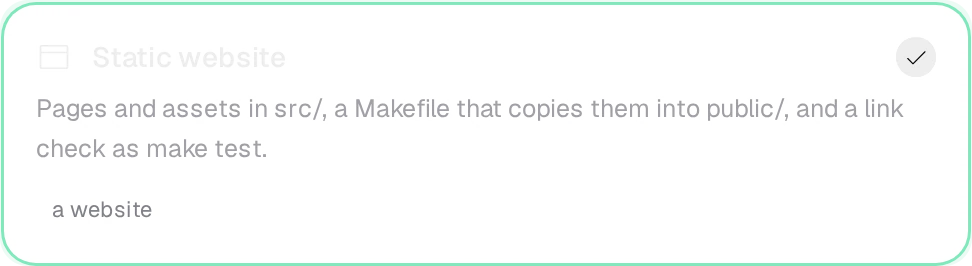
Bucket & Code Server IDE keeps a static website in a Git repository on your NAS. Its pages live in src/, a Makefile copies them into public/, and every push runs a link check on the NAS's own runner. One button copies public/ to a web server, such as QTS's Web Server on the same NAS, and reads the page back to prove it is there.
01 A web target
A file transfer protocol over an encrypted SSH connection. Plain FTP sends passwords and files unencrypted.WebDAV
A protocol for opening shared folders over HTTP or HTTPS. Windows and macOS can mount such a folder as a network drive; phone apps with WebDAV open it too.
A web target is the place a website is published to: a folder on this NAS that a web server serves, or an rclone remote, such as your own server over SFTP, FTP, WebDAV or S3. QTS's Web Server (Control Panel → Applications → Web Server) serves the Web share at http://<NAS address>/, so a folder in that share is the simplest target.
- On the Publish page (an admin's, under Administration) press Add a target in the Web targets card.
- Choose A folder of this NAS, give it a Name, and type the Folder: a folder of its own inside a share, such as
/share/Web/mysite. The folder must be empty or new. The panel refuses a whole share and any folder inside Bucket & Code's data folder. - Type the Public address that serves it, here
http://192.168.1.20/mysite/: withhttp://orhttps://, without a user, a password, a query or a fragment. Press Add the target.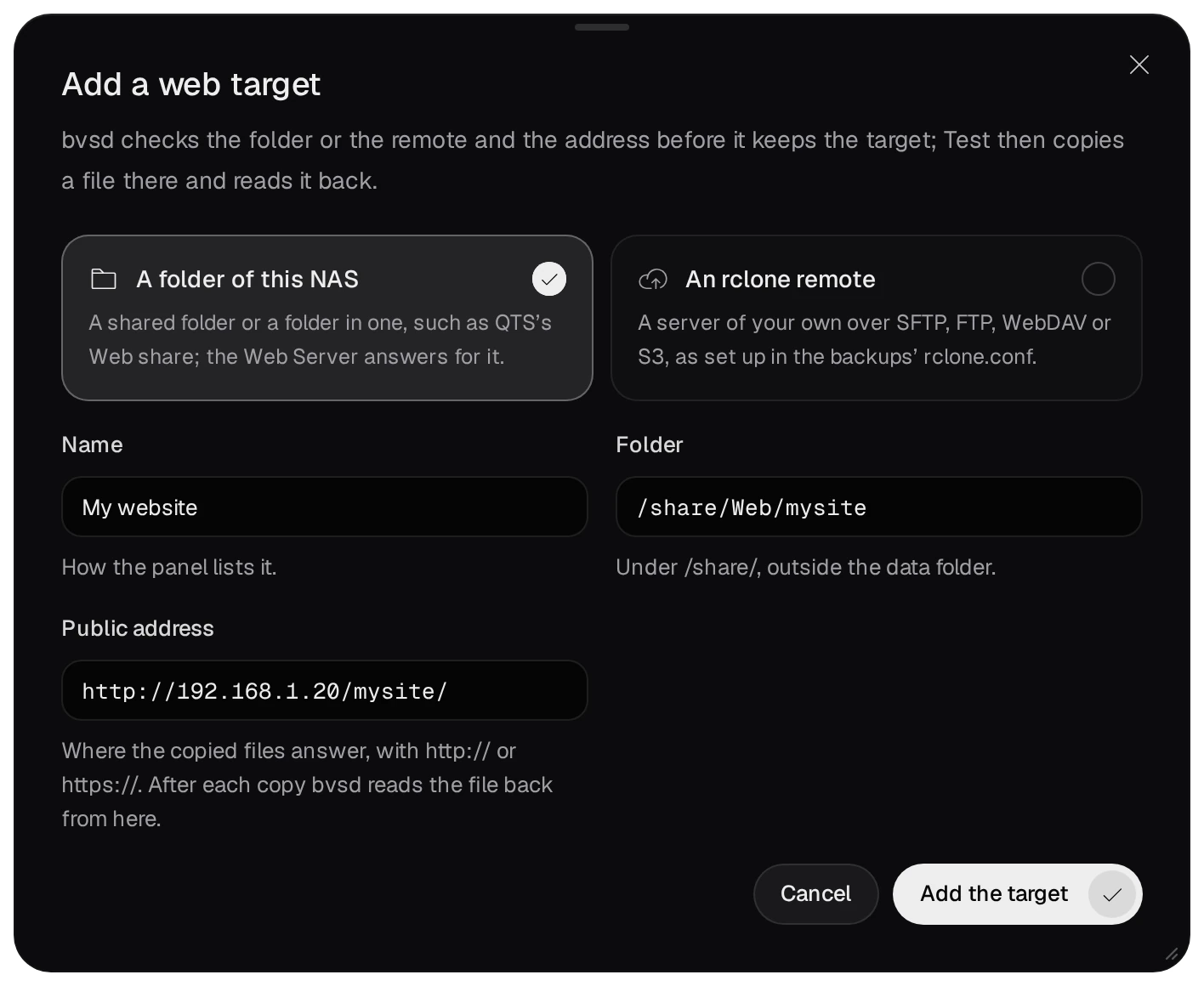
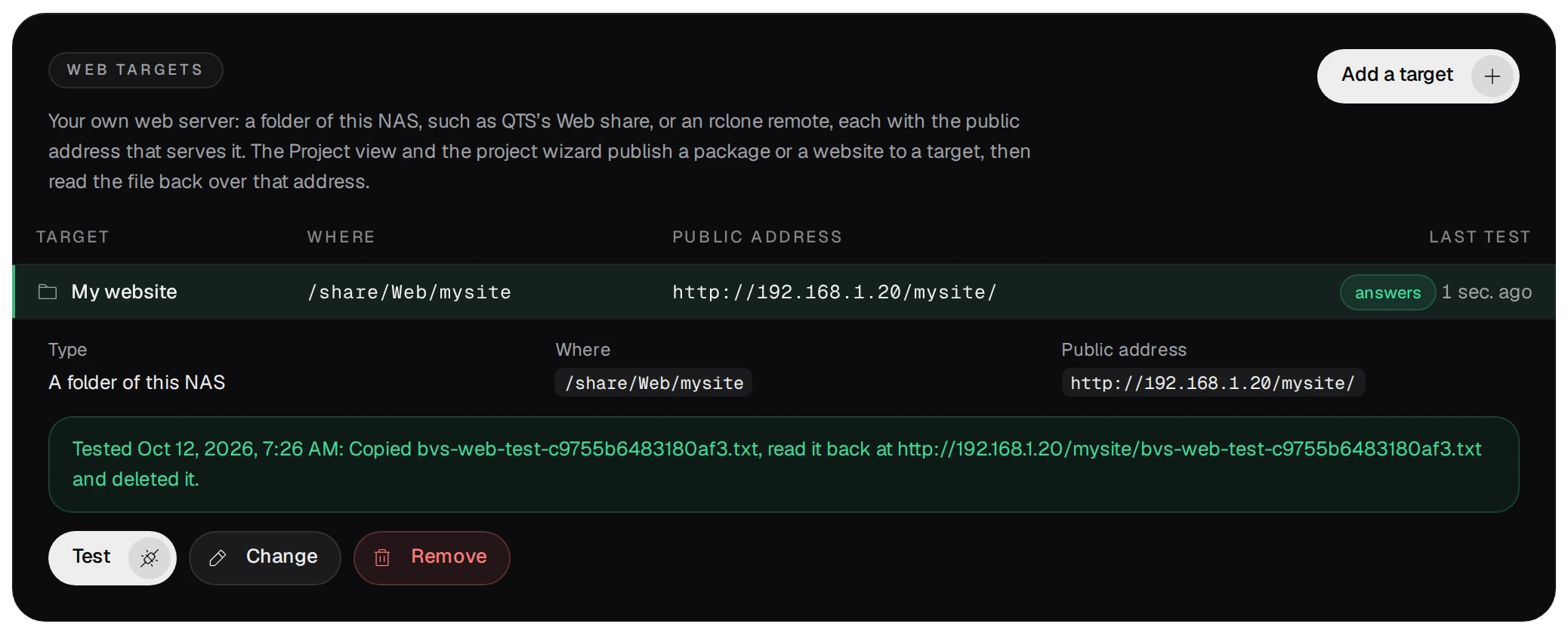
- Pick the target in the list and press Test. It copies a small file into the folder, reads it back from the public address and deletes it.
For an rclone target, pick a remote of the backups' rclone.conf in the Remote field, type the path on that remote, and type the public address that serves that path.
02 The website project
Open New project from the Git page or the command palette (developer role; the Publish step below is an admin's).
- Name and visibility: the name, for example
mysite, names the repository and the folderprojects/mysite. Leave it Private unless every account may read it.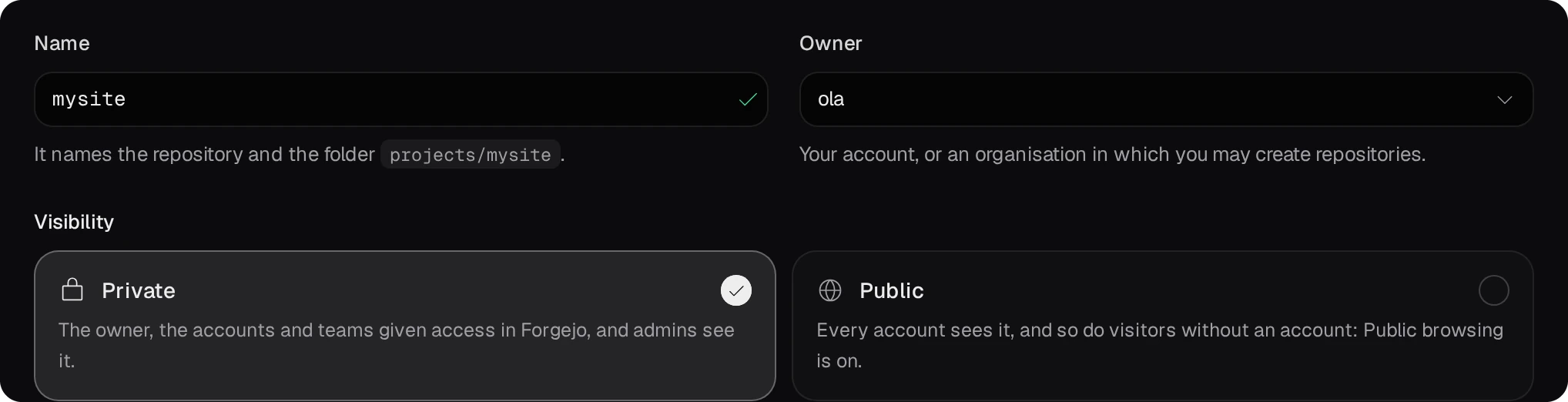
- Build: leave Build right after creating on.
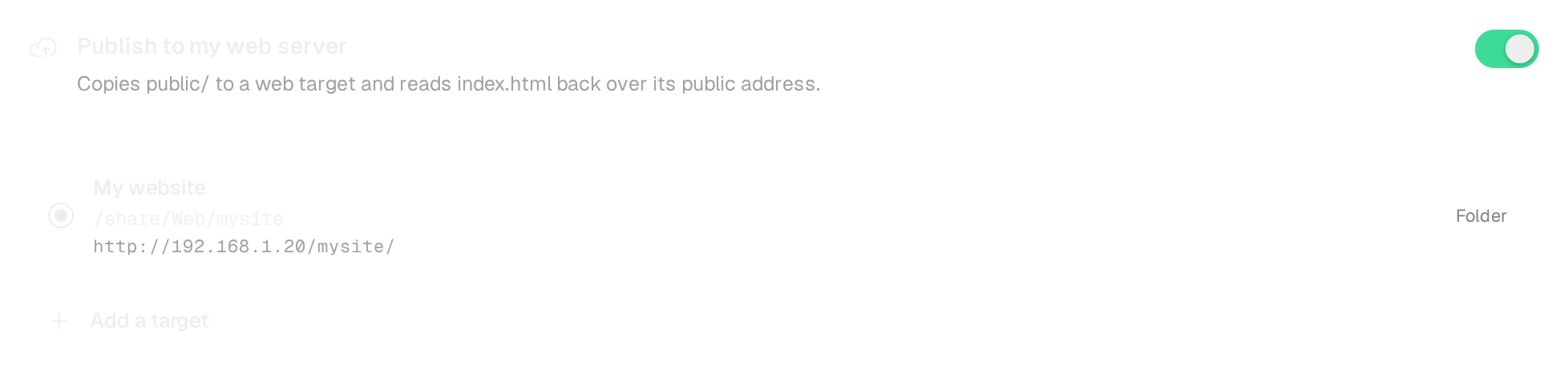
- Publish: turn on Publish to my web server and pick the target. Add a target here does the same as the Publish page.
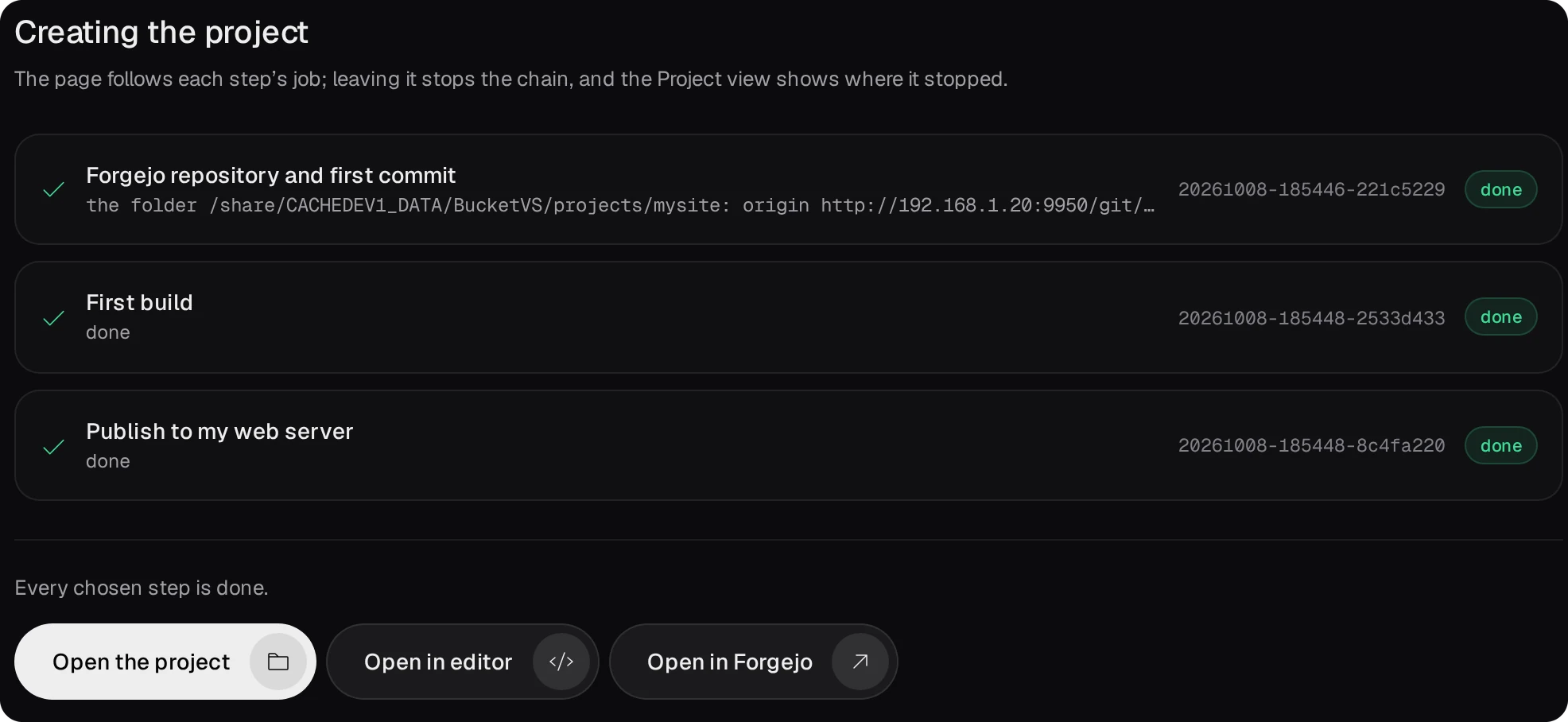
- Review, then Create project. The page follows each step: the repository and its first commit, the first build, and the publish.
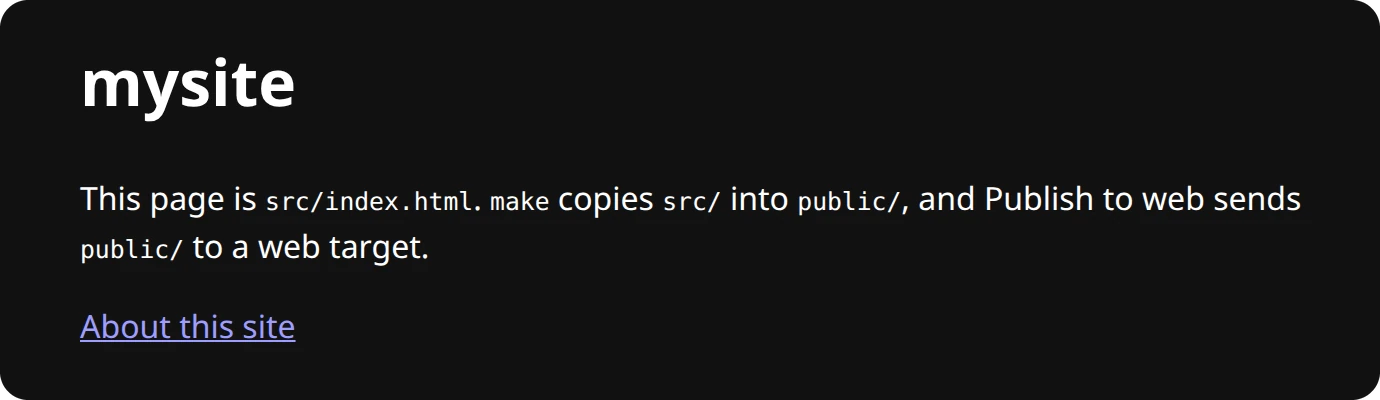
The site answers at the target's public address:
03 Edit, push, publish
- Edit the pages in
src/in the editor (the project is in itsprojects/folder), commit and push.makecopiessrc/intopublic/;make testchecks that every localhref=andsrc=of the pages leads to a file ofpublic/;make cleanremovespublic/. - Every push runs the project's workflow on the NAS's runner while the CI module is on:
make testin the Ubuntu 24.04 builder environment. A broken link fails the run.
- The project's page (Projects, or the Editor's side bar) builds and publishes by hand: Build runs
make, Rebuild runsmake cleanand thenmake, and Publish to My website (an admin's) sendspublic/to the target. Publishing never runs by itself after a push.
04 What a publish does
- After a publish, the target folder holds the site and nothing else: the publish deletes files the site no longer has. The first time Bucket & Code writes into the folder, it leaves a marker file
.bvs-web-targetthere (the test does the same). If a folder holds other files but no marker, Bucket & Code refuses to publish there, so it never empties a folder that belongs to something else. - After the copy, Bucket & Code reads
index.htmlback from the public address and compares it byte for byte with the copied file. If they differ, the job fails withweb_check:, the address and both sha256 values. Then either the web server does not serve that folder, or the address is wrong. - QPKG
The package format of QNAP apps.A project that makes a QPKG publishes the same way: the newest.qpkgand its.sha256, checked by sha256.