How to benchmark the RAM in a QNAP NAS
Original: nasutils.net/howto-ram-benchmark.html. Version of 2026-11-26.
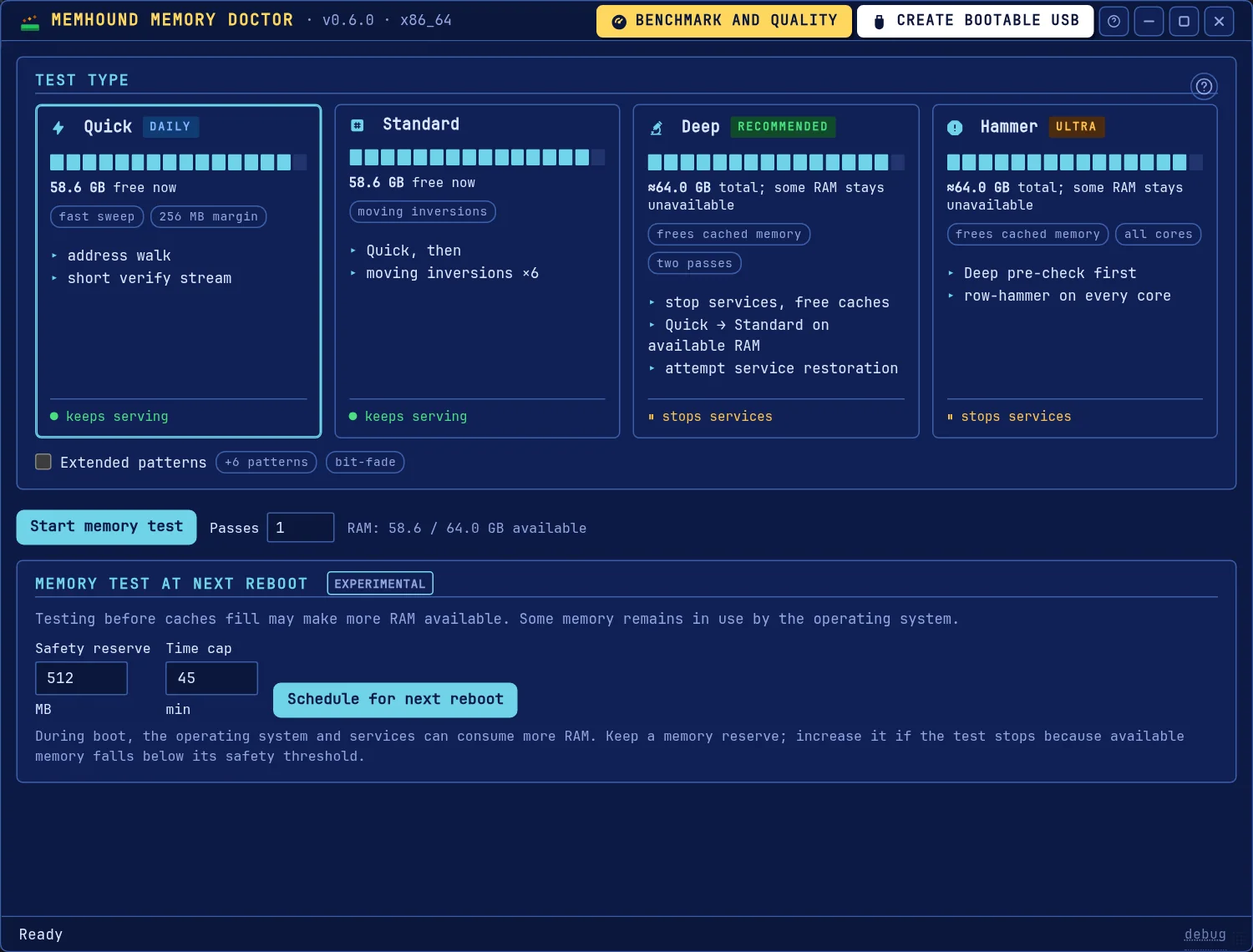
Benchmark and Quality is a button in the title bar of the MemHound window in StorageDiag Workbench. It measures memory bandwidth and how much the latency varies, and it checks the test area for bit errors under full load. The verdict shows whether the installed memory reaches the bandwidth its configuration should give. To look for faults in as much of the RAM as possible, use the separate RAM test.
Topic: Memory and processor
This guide covers StorageDiag Workbench & Utilities and the program built into it: MemHound
- Prepare stop the tasks that load the NAS
- Run phases P0 to P8, for a few minutes
- Read the verdict, the bandwidth in GB/s, the latency and the errors
- Check the channels, the memory speed and whether the modules match
- Compare with the previous run and the RAM board
01 Benchmark or RAM test
| Benchmark and Quality | RAM test (Quick, Standard, Deep, Hammer, Boot) | |
|---|---|---|
| Question | Does the memory reach the expected bandwidth under full load, with steady latency and no errors? | Are there errors in the tested part of the RAM? |
| How much RAM it tests | A test area of at most 256 MB per processor thread (Arena in the window); the result shows how much RAM stays untested | The free RAM (Quick, Standard), most of the RAM (Deep, Hammer), nearly all of it from a USB drive (Boot) |
| The NAS during the test | Keeps running, possibly slower | Keeps running (Quick, Standard) or stops its services (Deep, Hammer) |
| Result | PASS, PASS-UNQUALIFIED, MARGINAL, FAIL or INCONCLUSIVE, with the bandwidth in GB/s and the latency | PASS, PASS_WITH_TRANSIENTS, SUSPECT or FAIL, with the address of each error found |
The record of events that the Linux kernel writes.
If applications freeze or crash, or the kernel log reports memory errors, start with the RAM test. A PASS in the benchmark covers only its test area, so faults elsewhere in the RAM remain possible. A RAM test without errors says nothing about how fast the memory is.
02 Before you start
- Open MemHound: Start menu → Benchmarks → memhound, or click the memhound icon on the desktop. Both are on the Utilities desktop; the Workbench | Utilities strip in the Start menu switches between the desktops.
- virtual machine, maszyna wirtualna
A computer made in software, with a system of its own.Stop the tasks that load the NAS, such as backups, large file copies and virtual machines. The benchmark stops no services, and their load affects the result.
Benchmark and Quality starts the benchmark without confirmation; it may first wait for free memory (section 03). Once testing starts, the window does not let you stop the first run: its button reads Runs to completion, and the window stays open until the run ends. The browser remembers a finished run, so you can stop later runs in that browser. StorageDiag publishes a PASS, PASS-UNQUALIFIED or MARGINAL result to the public RAM board when the modules are a matched set and the NAS was idle. The board shows the bandwidth, the NAS model, the processor, the memory type, speed and channels, and the module part number. The window has no option to turn publication off.
03 Run the benchmark
- Click Benchmark and Quality in the title bar.
- CPU, procesor
The chip that runs the instructions of programs. It has one or more cores. On Intel and AMD,/proc/cpuinfogives its model asmodel name.If the NAS is short of free memory, for example while applications start again after a CPU Lab run, the window shows Waiting for the NAS to go quiet. After five minutes at most, the test starts anyway. Stop cancels the wait, also on a first run. - Follow the Test sequence. P0 checks the configuration and the modules. P1 to P3 write test patterns and read them back. P4 measures the bandwidth on a growing number of threads, from one to all, then holds the full load for 60 seconds. P5 measures latency, P6 puts a database-like load on the memory, and P7 and P8 leave the data alone for a while, then check it again.
For the duration of the test, StorageDiag sets the CPU governor to performance. When the test ends, it restores your setting.
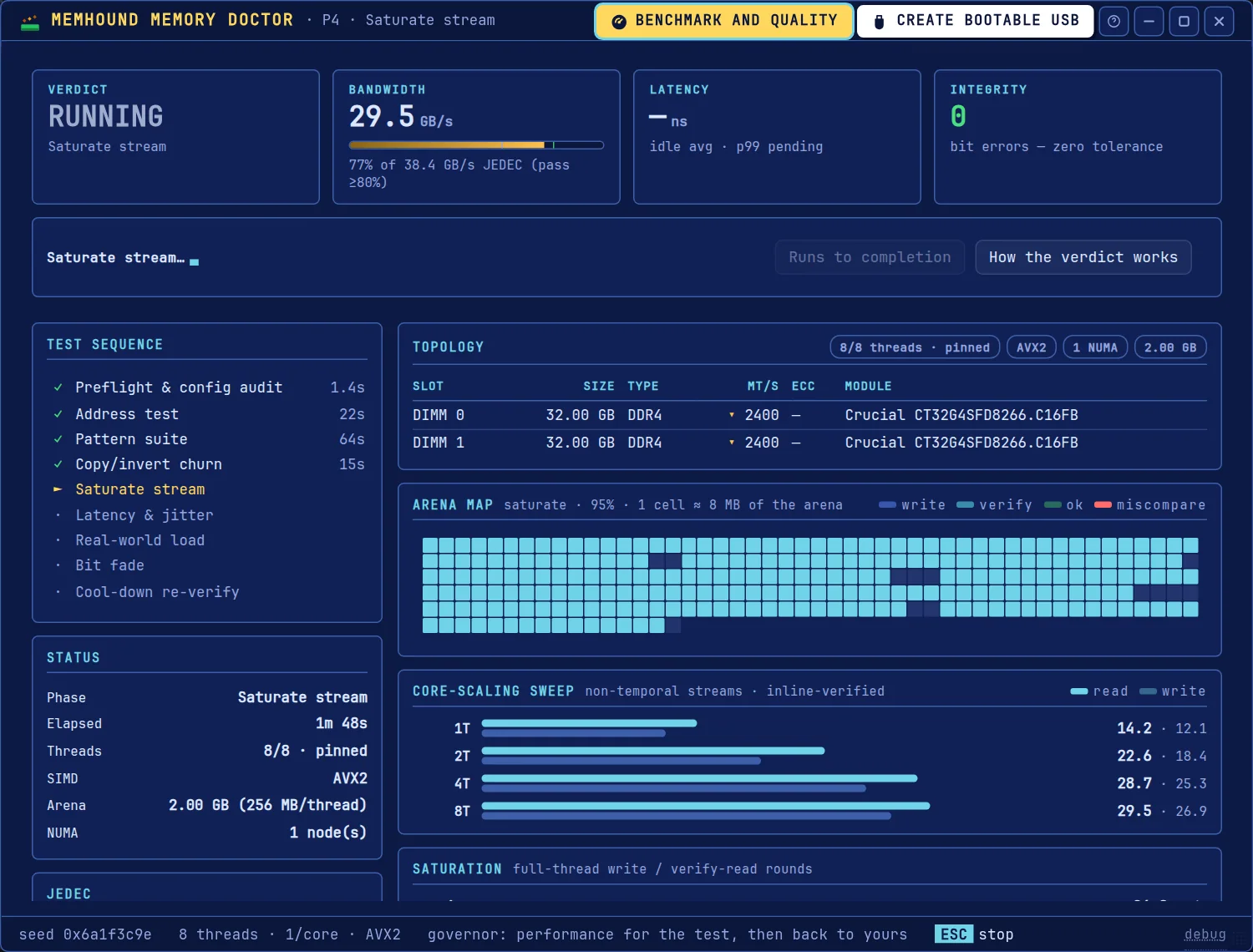
The Bandwidth tile draws its pass line at 80 %. The verdict uses the pass mark of your platform (section 05), so a figure the tile shows in amber can still pass.
04 Read the verdict
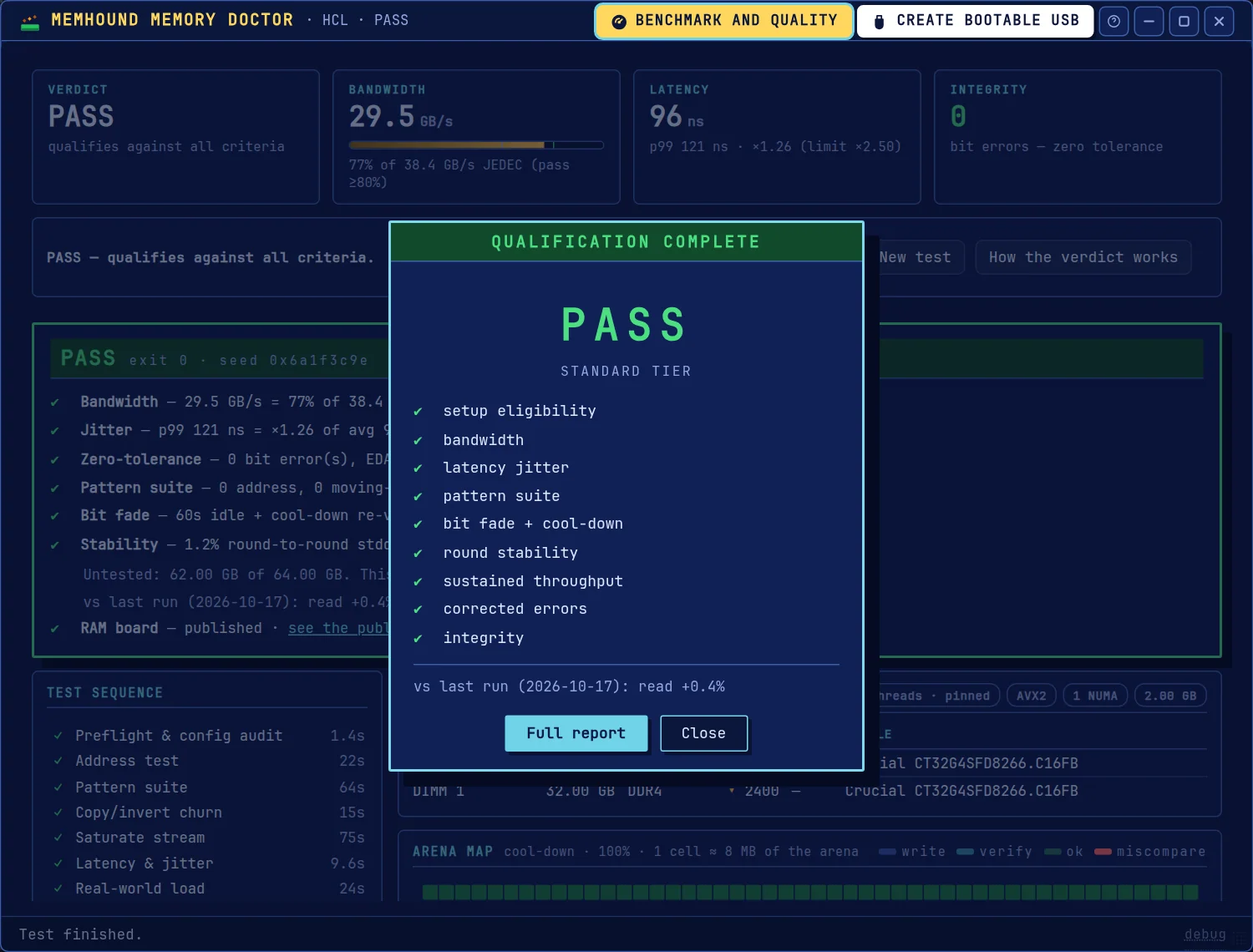
When the test ends, a dialog shows the verdict and a mark for each criterion. Close leaves the verdict card on the screen, with the measurement behind each criterion.
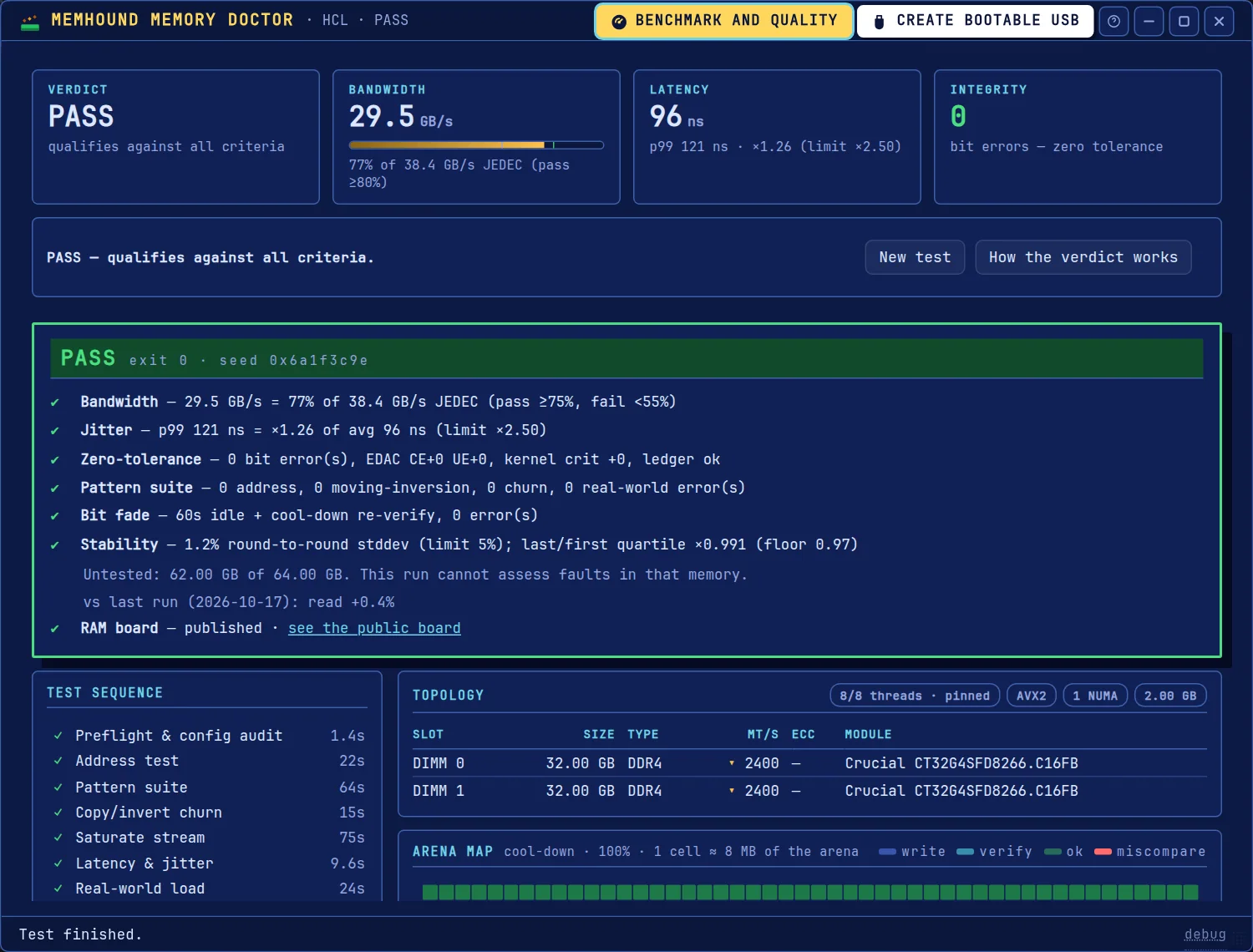
- Bandwidth. The highest read or write bandwidth of the test as a share of the JEDEC figure, beside the pass and fail marks for this NAS. When writing was faster, the row says that it used the write stream and also gives the verified read figure.
- Jitter. The 99th percentile of the latency divided by its average. Above 2.50, the latency under random access varies more than the test allows. This figure alone does not point to a faulty part.
- ECC
Memory that corrects single-bit errors and detects larger ones.kernel, jądro
The part of Linux that manages the hardware, memory and processes.Zero-tolerance. Bit errors, ECC events (CE: corrected, UE: uncorrected) and critical kernel events during the test. One bit error, one UE or one critical event means FAIL. With corrected errors (CE), the best possible verdict is MARGINAL. - Stability. The spread of the full-load rounds may be 5 % at most, and the last quarter of the rounds must reach at least 0.97 of the first quarter. The second check catches bandwidth that falls as the test goes on. If the CPU throttled, the Environment row says so.
- Untested. The part of the RAM outside the test area. This run cannot find a fault there.
| Verdict | What it means |
|---|---|
PASS | The bandwidth reaches the pass mark, the jitter stays within its limit, the test finds no errors, and the full-load rounds are stable. |
PASS-UNQUALIFIED | No errors, the jitter within its limit and stable rounds, but no JEDEC figure to compare the bandwidth with: the firmware's memory table does not give the speed, the bus width or the channel layout, or a stream ran faster than the figure computed from the table. This can happen in a virtual machine or on an ARM device. The window still shows the bandwidth in GB/s. |
MARGINAL | The bandwidth lies between the fail and pass marks, the full-load rounds are unstable, or ECC corrected an error during the test. |
FAIL | The bandwidth is below the fail mark, the jitter exceeds its limit, the test found a bit error, an uncorrected ECC error or a critical kernel event, or the modules are a mixed set (section 06). |
INCONCLUSIVE | The bandwidth or the jitter failed its criterion while the NAS was busy, short of free memory or CPU time, or throttling its CPU. Unstable rounds give the same verdict when other processes took the CPU time, and so does a test that MemHound ends itself because the NAS ran short of memory. A run you stop yourself ends as ABORTED, without a verdict. |
05 Expected bandwidth and pass marks
In this guide, the JEDEC figure is the theoretical bandwidth of the installed memory: the width of the data bus times the transfer rate at which the memory runs. MT/s means millions of transfers per second, not the clock frequency in MHz.
For 64-bit channels (8 bytes), the formula is channels × MT/s × 8 bytes. It gives MB/s; divide by 1000 for GB/s. A standard DDR5 module is also 64 bits wide, split into two independent 32-bit subchannels, and the 8 bytes stand for both together. The JEDEC panel shows the bus, the memory speed and the result, and the Topology table lists the modules.
| Modules | Channels | JEDEC figure at 2400 MT/s | About 77 % of that figure, as in figure 4 |
|---|---|---|---|
| 2 × 32 GB, one per channel | 2 | 2 × 2400 × 8 B = 38,400 MB/s = 38.4 GB/s | about 29.5 GB/s |
| 1 × 32 GB | 1 | 2400 × 8 B = 19,200 MB/s = 19.2 GB/s | about 14.8 GB/s |
- One module, one DDR4 channel. MemHound counts only the channels that hold a module, so it judges a single module against the figure for one channel: half the theoretical bandwidth of two such channels at the same speed. The benchmark's own result need not drop by exactly half. The percentage alone therefore does not show that one module gives fewer GB/s than two; compare the GB/s with RAM board entries for the same NAS model with two modules.
- firmware, oprogramowanie sprzętowe
QNAP's word for the system of the NAS, QTS or QuTS hero. It updates automatically or from an image you upload; the NAS restarts to finish the update.A lower speed than the label. A ▾ beside a module's MT/s value in the Topology table means that the module runs below its rated speed, for example at 2400 instead of 2667 MT/s. The JEDEC figure uses the actual speed, so the percentage is relative to that lower theoretical bandwidth. When all modules run at the same lower speed, the cause can be a limit of the platform, the SPD profile or a firmware setting. Check the specifications of the NAS model and the modules it supports. - Soldered memory. LPDDR channels are 16 or 32 bits wide, and MemHound reads the width from the firmware's memory table. When the table does not give the speed, the bus width or the channel layout, MemHound has no JEDEC figure, and the best possible verdict is PASS-UNQUALIFIED.
How much of the theoretical bandwidth a NAS reaches depends partly on its memory controller, so Benchmark and Quality uses pass and fail marks for each platform. The first row that matches the NAS applies; a row that says “two or more modules” needs at least two modules installed.
| Platform | PASS from | FAIL below |
|---|---|---|
| LPDDR (soldered memory), any processor | 68 % | 48 % |
| AMD EPYC 7002 or 7003 with DDR4, two or more modules | 50 % | 35 % |
| Xeon or EPYC with DDR5, two or more modules | 82 % | 62 % |
| Xeon or EPYC with DDR4, two or more modules | 80 % | 60 % |
| Core i5, i7, i9 or Ryzen with DDR5, two or more modules | 80 % | 60 % |
| Core i5, i7, i9 or Ryzen with DDR4, two or more modules | 75 % | 55 % |
| Celeron, Pentium or Atom | 65 % | 45 % |
| ARM processors | 55 % | 40 % |
| Any other processor | 80 % | 60 % |
A NAS that matches none of the earlier rows gets the last row, and so does a Core, Ryzen, Xeon or EPYC platform with a single module. The verdict card then notes that the built-in default marks apply. A Ryzen NAS with one DDR4 module at 77 % therefore gets MARGINAL.
06 Mixed modules
Benchmark and Quality qualifies a matched set of modules. In P0 it checks the modules and refuses the configuration when:
- the modules have different part numbers or, where the firmware gives none, differ in capacity, speed, type or ECC support;
- three modules are installed, or an odd number above four;
- the channels hold different amounts of memory.
The window then shows SETUP NOT ELIGIBLE FOR QA with the reason. The test goes on, and its measurements are for information only: the verdict is FAIL, and StorageDiag neither saves nor publishes the result.
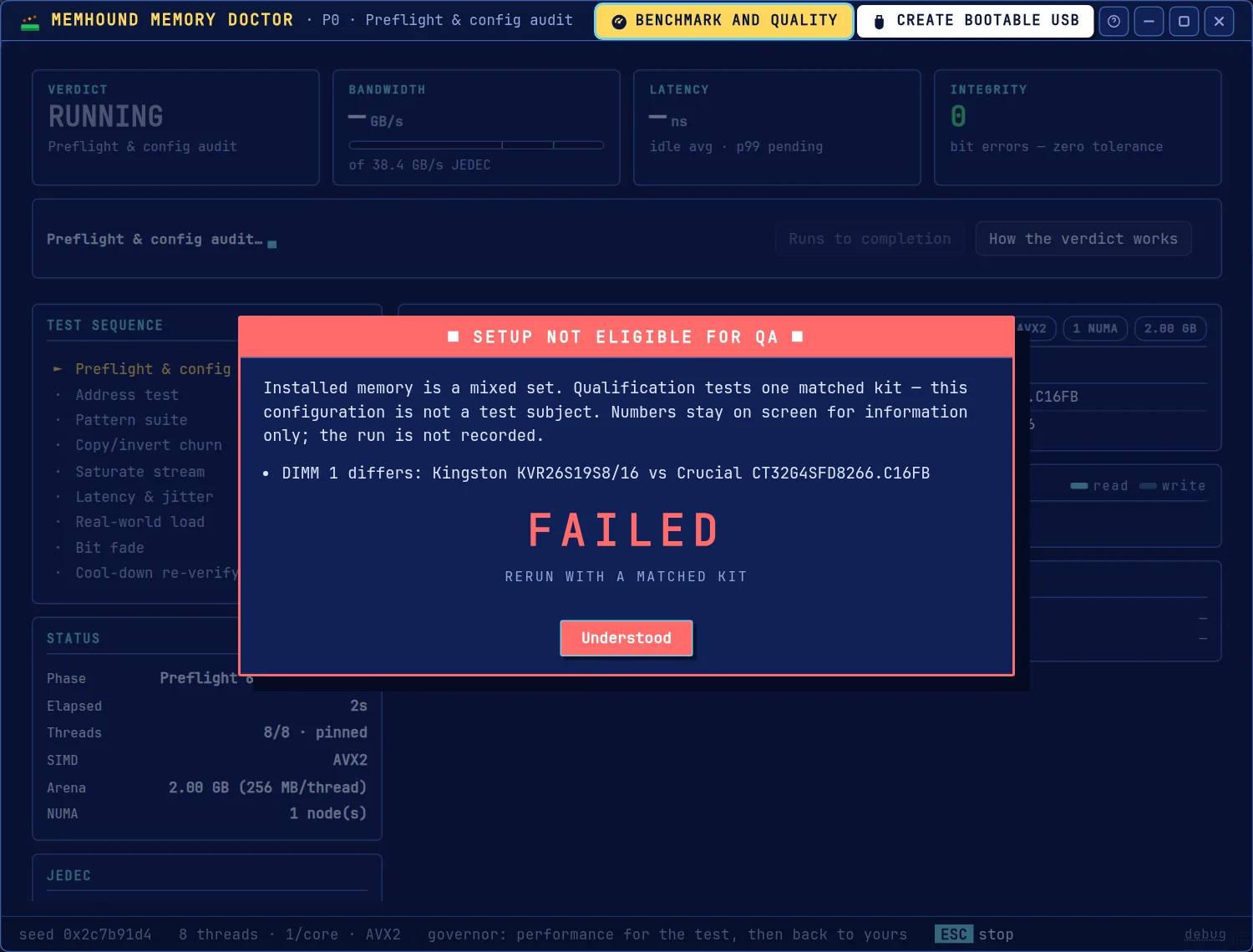
A FAIL for this reason says that the configuration falls outside the qualification rules. A mixed set can still work correctly; to check it for errors, use the RAM test. To qualify the memory, install a matched pair or set and run the benchmark again.
07 Compare the results
- The same NAS before and after a change. MemHound keeps the result of each run with a matched set, and the verdict card compares a new run with the previous one, for example
vs last run (2026-10-17): read +0.4%. Run the benchmark before you replace modules, move them to other slots or update the firmware, then run it again and compare. - Other NAS units. Start menu → Benchmarks → RAM board opens the public board in a browser tab, with the bandwidth in GB/s, the NAS model, the memory configuration, its speed and its channel count. Compare with the same model and the same memory configuration.
- Comparable conditions. Compare runs made while nothing else loaded the NAS. When the difference is small, run the benchmark two or three times before you draw a conclusion.
08 What to do next
- FAIL because of errors. A bit error or an uncorrected ECC error points to a fault that appeared under load. A critical kernel event also gives FAIL; read its entry in the kernel log, because the event alone does not prove a RAM module faulty. Run the RAM test (Deep, then Boot) to confirm the errors and find their addresses, and replace a module only when the tests confirm that it is faulty. After bit errors or an uncorrected ECC error, StorageDiag reports the module to the public fault list, unless the modules are a mixed set or the NAS does not identify its memory.
- MARGINAL because of corrected errors. ECC corrected the errors, and a run with corrected errors cannot pass. Run the benchmark again. If CE events come back, run the RAM test and find the module they come from.
- FAIL or MARGINAL because of bandwidth. Check the configuration first: one module in a model with two channels, modules in the wrong slots, or a lower memory speed than expected. If the set is matched and runs at the expected speed, compare the result with the same NAS model on the RAM board.
- throttling, dławienie
Lowering of the CPU clock because of heat or a power limit.INCONCLUSIVE. The verdict card names what the test found: load, low free memory, CPU throttling or a shortage of CPU time. Stop the tasks that load the NAS and run the test again.